> ## Documentation Index
> Fetch the complete documentation index at: https://docs.bentowise.com/llms.txt
> Use this file to discover all available pages before exploring further.
# Run Your AI Agent
*This feature was introduced in Bentowise V2.2*
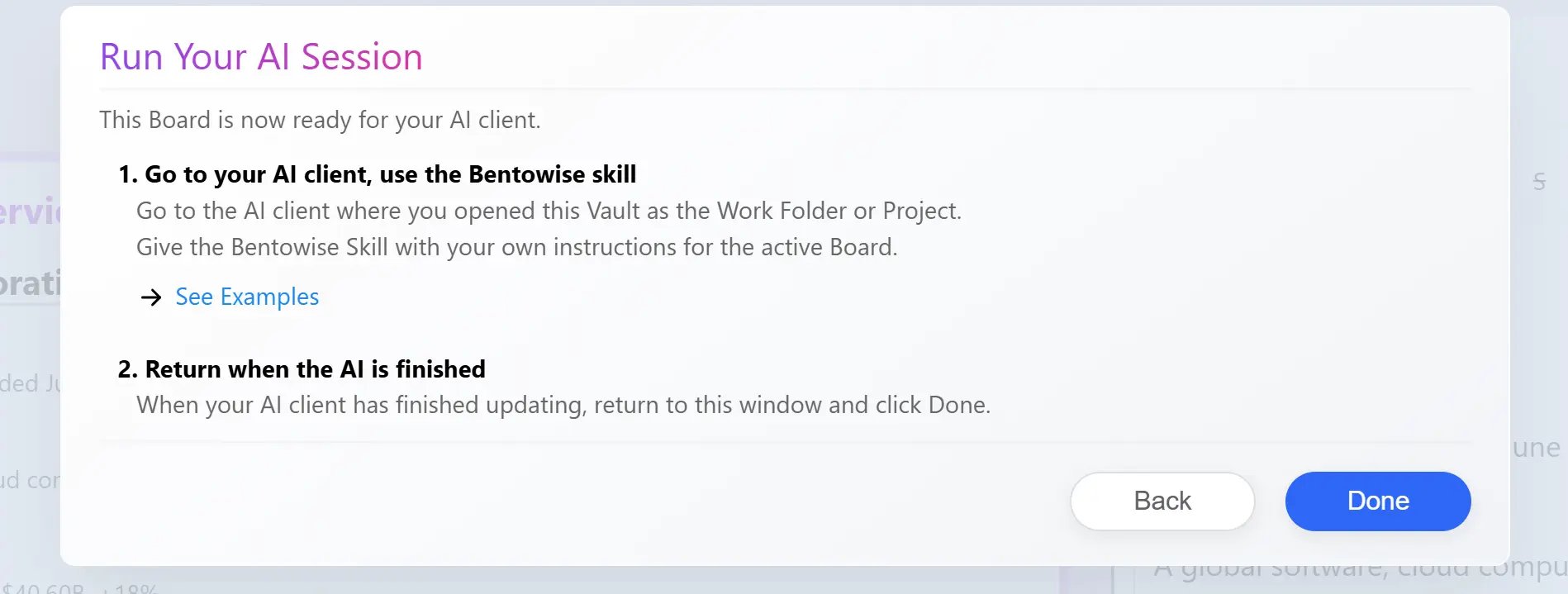
Once the session is active, switch to your external AI client and use the Bentowise Skill to work with the current Board.
 ## Open Your AI Client
Return to the AI client where you opened your Vault as the Work Folder or Project.
You can use any compatible AI client with the Bentowise Skill installed. Bentowise does not require you to use a particular AI provider or purchase a separate AI subscription.
## Give Your Agent Instructions
Tell your AI client to use the Bentowise Skill and describe what you want to accomplish with the active Board.
For example:
*Use the Bentowise Skill to fill the active Board with the latest information about NVDA. Keep the existing block structure.*
## Open Your AI Client
Return to the AI client where you opened your Vault as the Work Folder or Project.
You can use any compatible AI client with the Bentowise Skill installed. Bentowise does not require you to use a particular AI provider or purchase a separate AI subscription.
## Give Your Agent Instructions
Tell your AI client to use the Bentowise Skill and describe what you want to accomplish with the active Board.
For example:
*Use the Bentowise Skill to fill the active Board with the latest information about NVDA. Keep the existing block structure.*
 You can also ask your agent to work in different ways, depending on your task:
### Update an existing Board
Use the Bentowise Skill to update the content of the active Board. Keep the existing blocks and layout unchanged.
### Generate content using a template
Use the Bentowise Skill to create a research Board for three companies using the same template structure.
### Create a new Board structure
Use the Bentowise Skill to build a new Board for comparing three project options. Choose an appropriate structure and populate it with the information I provide.
The Skill will read the current session information and the Board structure before making changes. If your instructions are unclear, you can ask the agent to clarify the intended changes before proceeding.
The AI works with your local Board files through the Skill. Bentowise provides the workspace, while your chosen AI client performs the requested work.
## Wait for the AI to Finish
Let your AI client complete its work before returning to Bentowise.
While the session is active, the Board remains temporarily locked to avoid conflicting changes. You can continue giving instructions to your AI client.
When your AI client has finished, return to the Bentowise AI Session window and click **Done**.
Bentowise will end the session, unlock the Board, and refresh it to display the updated content.
You can then review the changes, continue editing the Board, or start another AI session if further work is needed.
You can also ask your agent to work in different ways, depending on your task:
### Update an existing Board
Use the Bentowise Skill to update the content of the active Board. Keep the existing blocks and layout unchanged.
### Generate content using a template
Use the Bentowise Skill to create a research Board for three companies using the same template structure.
### Create a new Board structure
Use the Bentowise Skill to build a new Board for comparing three project options. Choose an appropriate structure and populate it with the information I provide.
The Skill will read the current session information and the Board structure before making changes. If your instructions are unclear, you can ask the agent to clarify the intended changes before proceeding.
The AI works with your local Board files through the Skill. Bentowise provides the workspace, while your chosen AI client performs the requested work.
## Wait for the AI to Finish
Let your AI client complete its work before returning to Bentowise.
While the session is active, the Board remains temporarily locked to avoid conflicting changes. You can continue giving instructions to your AI client.
When your AI client has finished, return to the Bentowise AI Session window and click **Done**.
Bentowise will end the session, unlock the Board, and refresh it to display the updated content.
You can then review the changes, continue editing the Board, or start another AI session if further work is needed.
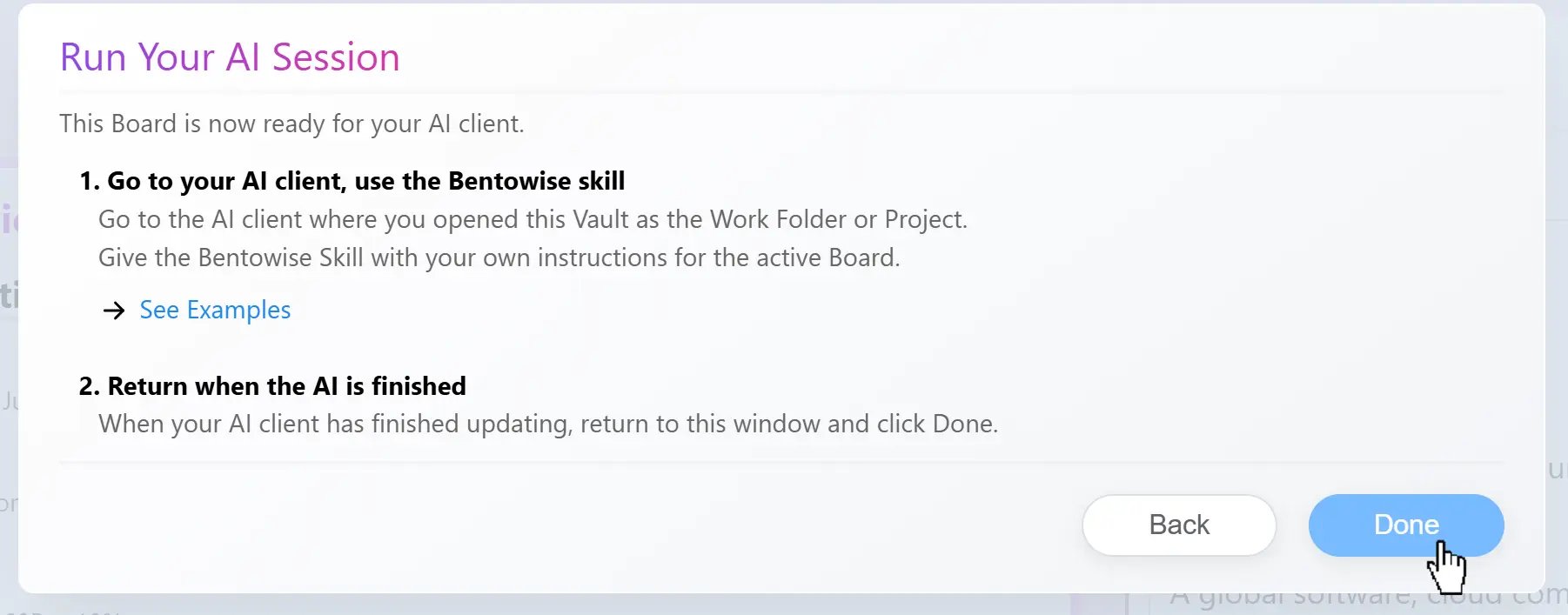 Do not click Done while your AI client is still writing to the Board. Wait until the agent has completed its work before ending the session.
## Review the Result
AI can help generate, organize, and update Board content, but the final research and judgment remain yours.
Review the results, verify important information, and make any adjustments needed before relying on the Board.
If you are not satisfied with the result, you can use **Restore Points** to return the Board to an earlier state.
Do not click Done while your AI client is still writing to the Board. Wait until the agent has completed its work before ending the session.
## Review the Result
AI can help generate, organize, and update Board content, but the final research and judgment remain yours.
Review the results, verify important information, and make any adjustments needed before relying on the Board.
If you are not satisfied with the result, you can use **Restore Points** to return the Board to an earlier state.