> ## Documentation Index
> Fetch the complete documentation index at: https://docs.bentowise.com/llms.txt
> Use this file to discover all available pages before exploring further.
# Start an AI Session
*This feature was introduced in Bentowise V2.2*
Bentowise works with external AI clients through the Bentowise Skill.
You can use an AI client you already prefer, such as ChatGPT Work, Claude Code, OpenCode, or other compatiable clients to work with your Boards.
 Click **Start AI Session** to open the setup dialog. Before running your AI agent for the first time, follow the instructions in the dialog to complete the one-time setup.
## Install the Bentowise Skill
The Bentowise Skill teaches your AI client how to find and work with Bentowise Boards.
Click **Start AI Session** to open the setup dialog. Before running your AI agent for the first time, follow the instructions in the dialog to complete the one-time setup.
## Install the Bentowise Skill
The Bentowise Skill teaches your AI client how to find and work with Bentowise Boards.
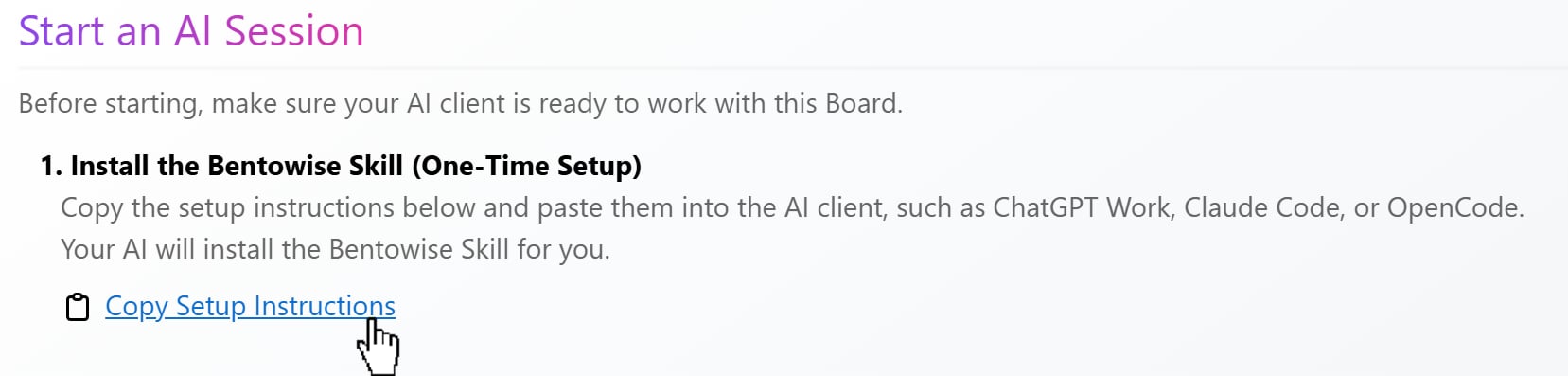 Click **Copy Setup Instructions** in the setup window, then paste the instructions into your AI client. The AI will follow the instructions to install the Skill for you.
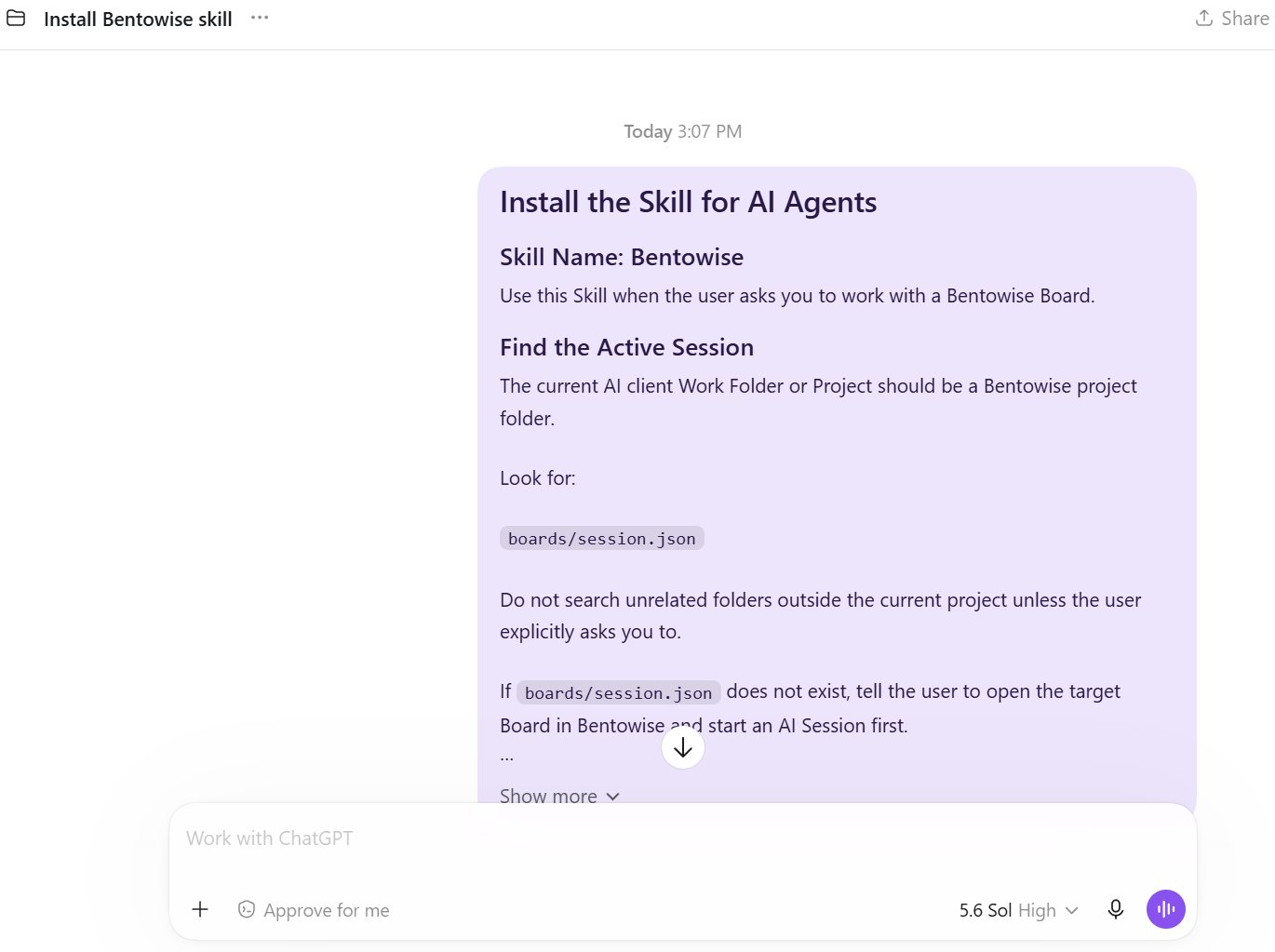 You only need to complete this setup once for each AI client. You do not need to reinstall the Skill every time you start a session.
## Set Your Work Folder
Open your Bentowise Vault folder as the Work Folder or Project in your AI client.
The setup window displays the path to your current Vault. Use that folder, rather than an individual Board file, as the working directory.
You only need to complete this setup once for each AI client. You do not need to reinstall the Skill every time you start a session.
## Set Your Work Folder
Open your Bentowise Vault folder as the Work Folder or Project in your AI client.
The setup window displays the path to your current Vault. Use that folder, rather than an individual Board file, as the working directory.
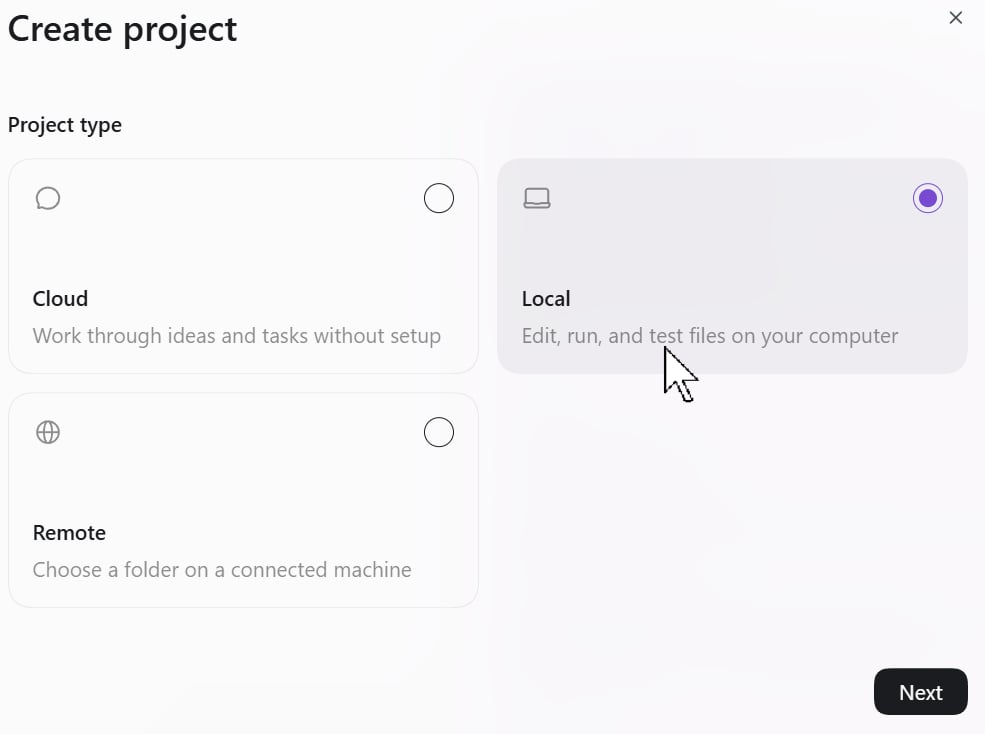 For example:
*\~/Bentowise/MyVault*
Your AI client needs access to this folder so the Bentowise Skill can locate the active Board and its associated files.
## Use the Current Vault
Before continuing, make sure your AI client is working in the Vault shown in Bentowise. If you use multiple Vaults, check that you have selected the correct one.
Once your AI client is ready, click **Next**.
Bentowise will prepare the AI session, create a Restore Point, and temporarily lock the Board. The Board is now ready for your external AI client to work with.
The initial setup is only required once. For future sessions, you can reuse your installed Skill and existing Work Folder or Project.
For example:
*\~/Bentowise/MyVault*
Your AI client needs access to this folder so the Bentowise Skill can locate the active Board and its associated files.
## Use the Current Vault
Before continuing, make sure your AI client is working in the Vault shown in Bentowise. If you use multiple Vaults, check that you have selected the correct one.
Once your AI client is ready, click **Next**.
Bentowise will prepare the AI session, create a Restore Point, and temporarily lock the Board. The Board is now ready for your external AI client to work with.
The initial setup is only required once. For future sessions, you can reuse your installed Skill and existing Work Folder or Project.