> ## Documentation Index
> Fetch the complete documentation index at: https://docs.bentowise.com/llms.txt
> Use this file to discover all available pages before exploring further.
# Add Content to Your Board
Bentowise supports several types of content blocks, including:
* Notes
* Images
* Links
* Attachments
These commonly used block types are available from the top menu. Select the type you need to add it directly to the board.
 You can also bring information into a board from outside Bentowise. For example, you can:
* Paste content from the clipboard
* Drag text, images, or links directly from a webpage
When researching online, you can simply drag useful material into your board and continue working with it there. This makes collecting information a natural part of the research process rather than a separate step.
## Different Ways to Add Content
Even when the resulting content looks similar, adding it to a board can have different meanings.
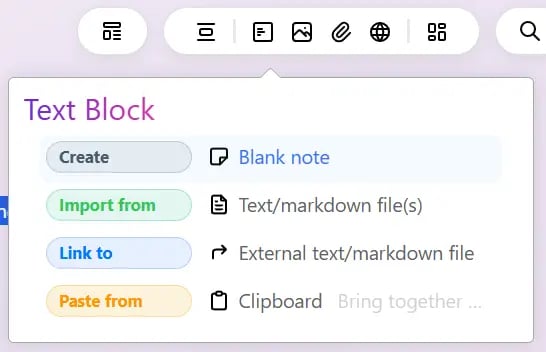
Depending on where the content comes from and how you want Bentowise to manage it, you can choose from four basic actions:
**Create / Import from / Link to / Paste from**
Each represents a different relationship between the board and the original content.
You can also bring information into a board from outside Bentowise. For example, you can:
* Paste content from the clipboard
* Drag text, images, or links directly from a webpage
When researching online, you can simply drag useful material into your board and continue working with it there. This makes collecting information a natural part of the research process rather than a separate step.
## Different Ways to Add Content
Even when the resulting content looks similar, adding it to a board can have different meanings.
Depending on where the content comes from and how you want Bentowise to manage it, you can choose from four basic actions:
**Create / Import from / Link to / Paste from**
Each represents a different relationship between the board and the original content.
 ## Create
Use **Create** when you want to create new content directly inside Bentowise.
For example, you might create a new note and type your own thoughts, observations, or conclusions.
**Create means the content originates in Bentowise.**
## Import from
Use **Import from** when you want to bring existing external material into Bentowise, such as an image, document, or other local file.
Imported resources become locally managed content inside the Vault. They can therefore be stored and backed up together with the board, and can also follow the Vault when you sync it across devices using a third-party sync service.
**Import means the resource becomes part of the Vault.**
## Link to
Not every resource needs to be copied into the Vault.
Use **Link to** when you want to create a reference or shortcut while leaving the original content in its existing location.
This is useful for linking to:
* Webpages and online resources
* Shortcuts to local files
* Other Bentowise Boards
* Other resources you want to access from the board
**Link means the original content stays where it is, while the board provides a way to reach it.**
## Paste from
Use **Paste from** to add content that is already on your clipboard.
While browsing, reading, or working in another application, you may already have copied text, an image, or a link. Bentowise lets you turn that clipboard content directly into a block without first saving it as a file or going through an additional import step.
**Paste means using the clipboard as the source.**
## Choose the Right Relationship
Whichever method you use, the important question is:
**Should this content become part of the Vault, or do you simply need to be able to find and access it from the board?**
That distinction helps you keep your boards useful without unnecessarily duplicating everything you work with.
## Create
Use **Create** when you want to create new content directly inside Bentowise.
For example, you might create a new note and type your own thoughts, observations, or conclusions.
**Create means the content originates in Bentowise.**
## Import from
Use **Import from** when you want to bring existing external material into Bentowise, such as an image, document, or other local file.
Imported resources become locally managed content inside the Vault. They can therefore be stored and backed up together with the board, and can also follow the Vault when you sync it across devices using a third-party sync service.
**Import means the resource becomes part of the Vault.**
## Link to
Not every resource needs to be copied into the Vault.
Use **Link to** when you want to create a reference or shortcut while leaving the original content in its existing location.
This is useful for linking to:
* Webpages and online resources
* Shortcuts to local files
* Other Bentowise Boards
* Other resources you want to access from the board
**Link means the original content stays where it is, while the board provides a way to reach it.**
## Paste from
Use **Paste from** to add content that is already on your clipboard.
While browsing, reading, or working in another application, you may already have copied text, an image, or a link. Bentowise lets you turn that clipboard content directly into a block without first saving it as a file or going through an additional import step.
**Paste means using the clipboard as the source.**
## Choose the Right Relationship
Whichever method you use, the important question is:
**Should this content become part of the Vault, or do you simply need to be able to find and access it from the board?**
That distinction helps you keep your boards useful without unnecessarily duplicating everything you work with.