> ## Documentation Index
> Fetch the complete documentation index at: https://docs.bentowise.com/llms.txt
> Use this file to discover all available pages before exploring further.
# Organize with Sections
As a Board grows, you can use **Sections** to group related Blocks and keep the overall structure clear.
A Section acts as a container that holds multiple Blocks.
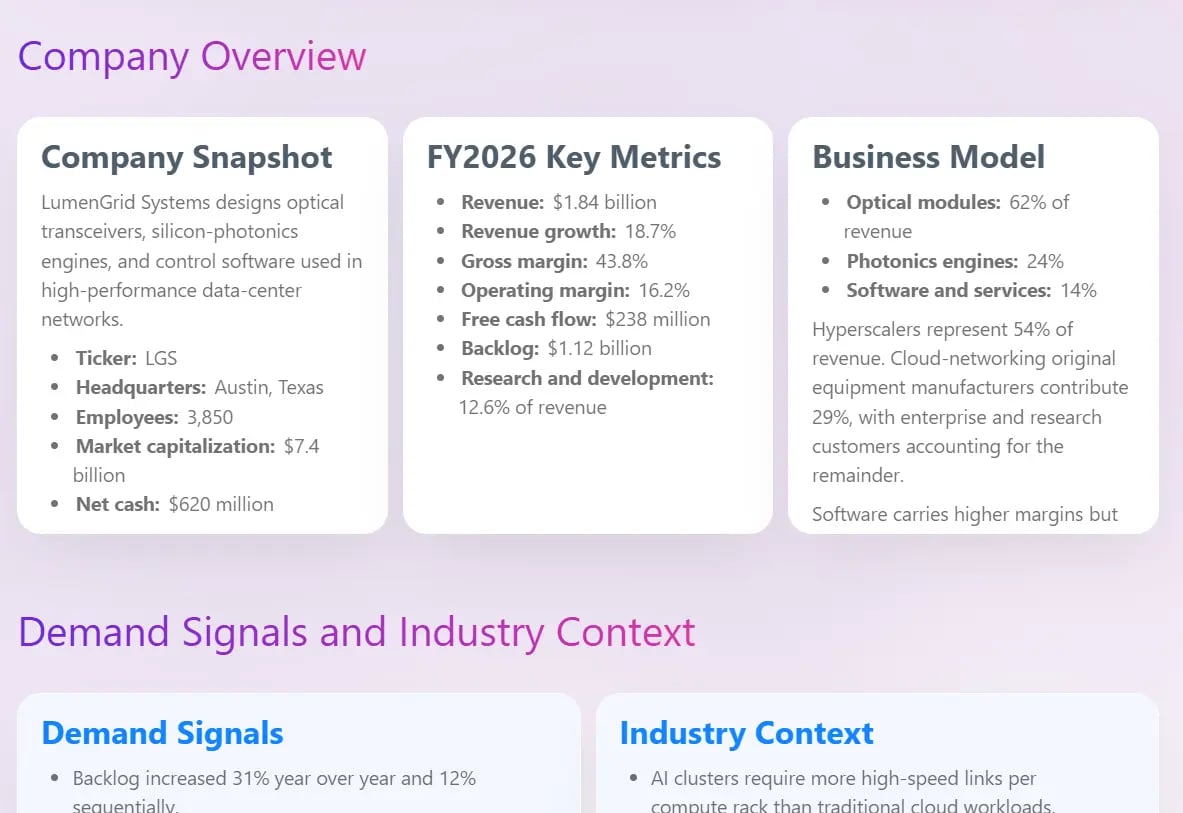 ## Create a Section with a Header
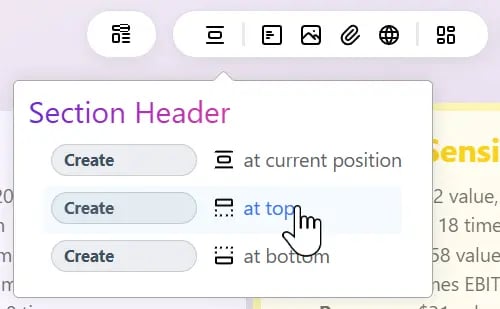
In Bentowise, creating a Section starts with adding a **Section Header**.
Place the Header where you want the Section to begin, and the related Blocks can then be grouped under that Section.
## Create a Section with a Header
In Bentowise, creating a Section starts with adding a **Section Header**.
Place the Header where you want the Section to begin, and the related Blocks can then be grouped under that Section.
 For example, a research Board might contain Sections such as:
* Background
* Evidence
* Analysis
* Risks
* Conclusion
Each Section begins with a Header and contains the Blocks that belong to that part of the Board.
The **Section Header is itself a Block**, so it can be freely moved and repositioned just like other Blocks.
This makes it easy to reshape the structure of a Board as your work develops.
## Navigate with the Section List
Once Sections have been created, a **Section List** appears on the right side of the Board.
For example, a research Board might contain Sections such as:
* Background
* Evidence
* Analysis
* Risks
* Conclusion
Each Section begins with a Header and contains the Blocks that belong to that part of the Board.
The **Section Header is itself a Block**, so it can be freely moved and repositioned just like other Blocks.
This makes it easy to reshape the structure of a Board as your work develops.
## Navigate with the Section List
Once Sections have been created, a **Section List** appears on the right side of the Board.
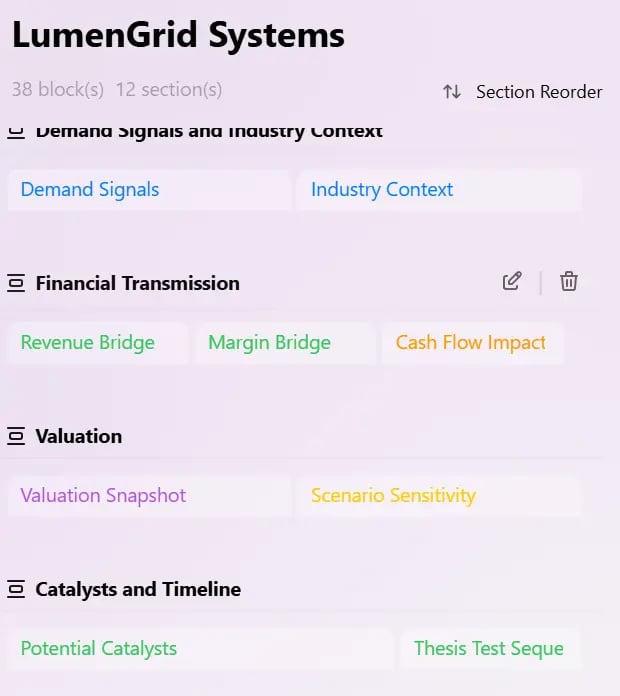 The list shows each Section together with miniature previews of the Blocks it contains, giving you a compact overview of the entire Board.
You can use it to:
* Jump quickly to a Section
* See which Blocks belong to each Section
* Navigate large Boards without scrolling through the entire workspace
## Move Blocks from the Section List
The Section List is more than a navigation tool.
You can also drag Blocks directly within the miniature overview.
This makes it easy to move a Block from one Section to another without dragging it across a large Board.
For Boards with a lot of content, the Section List provides a faster way to reorganize individual Blocks from a higher-level view.
## Reorder Entire Sections
Sections can also be reordered directly from the Section List.
The list shows each Section together with miniature previews of the Blocks it contains, giving you a compact overview of the entire Board.
You can use it to:
* Jump quickly to a Section
* See which Blocks belong to each Section
* Navigate large Boards without scrolling through the entire workspace
## Move Blocks from the Section List
The Section List is more than a navigation tool.
You can also drag Blocks directly within the miniature overview.
This makes it easy to move a Block from one Section to another without dragging it across a large Board.
For Boards with a lot of content, the Section List provides a faster way to reorganize individual Blocks from a higher-level view.
## Reorder Entire Sections
Sections can also be reordered directly from the Section List.
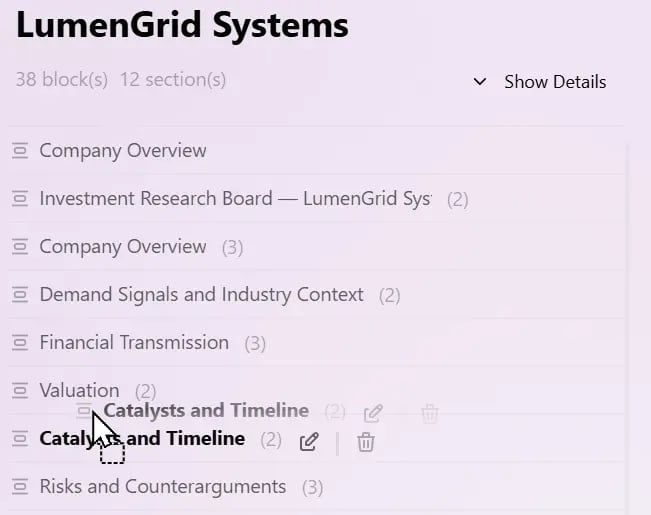 Reordering a Section moves the entire group of Blocks together, allowing you to change the overall flow of a Board without moving each Block individually.
For example, you might change:
**Background → Analysis → Risks → Conclusion**
into:
**Conclusion → Evidence → Risks → Background**
The content stays together, while the structure changes to match a new line of reasoning, presentation flow, or teaching sequence.
**Sections help you organize groups of Blocks, while the Section List gives you a higher-level way to navigate and restructure the entire Board.**
Reordering a Section moves the entire group of Blocks together, allowing you to change the overall flow of a Board without moving each Block individually.
For example, you might change:
**Background → Analysis → Risks → Conclusion**
into:
**Conclusion → Evidence → Risks → Background**
The content stays together, while the structure changes to match a new line of reasoning, presentation flow, or teaching sequence.
**Sections help you organize groups of Blocks, while the Section List gives you a higher-level way to navigate and restructure the entire Board.**