> ## Documentation Index
> Fetch the complete documentation index at: https://docs.bentowise.com/llms.txt
> Use this file to discover all available pages before exploring further.
# View Settings
This featrue let you customize how your Board looks and how much space it uses on your screen.
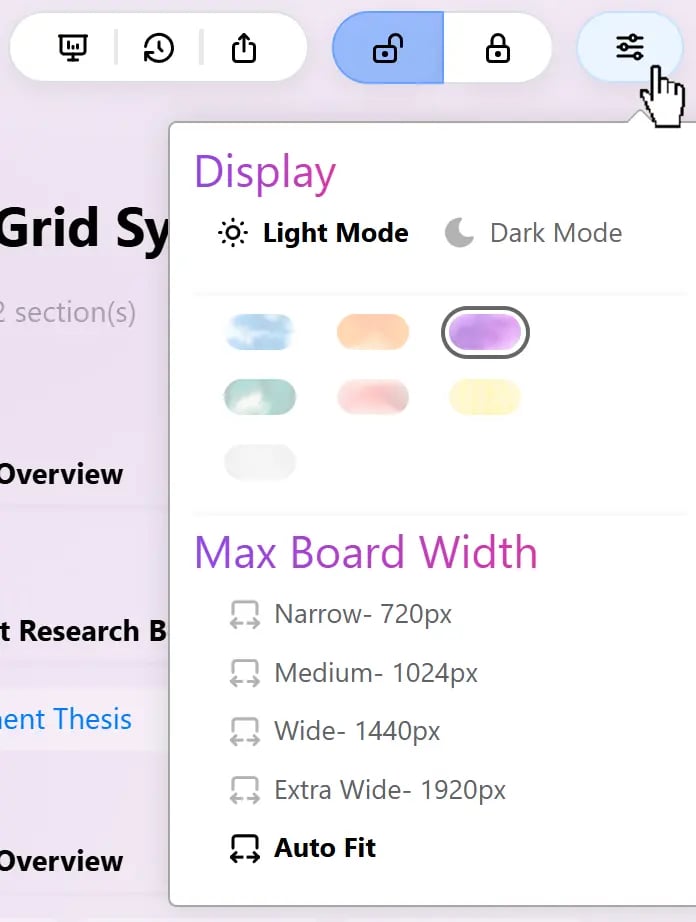
Open the **View Settings** menu by clicking the settings icon in the upper-right corner of the Board.
 ## Display
### Light & Dark Mode
Switch between **Light Mode** and **Dark Mode** to match your working environment and viewing preference.
The selected mode changes the Board’s appearance without affecting its content or layout.
### Board Theme Colors
Choose a theme color to give your Board a different visual appearance.
## Display
### Light & Dark Mode
Switch between **Light Mode** and **Dark Mode** to match your working environment and viewing preference.
The selected mode changes the Board’s appearance without affecting its content or layout.
### Board Theme Colors
Choose a theme color to give your Board a different visual appearance.
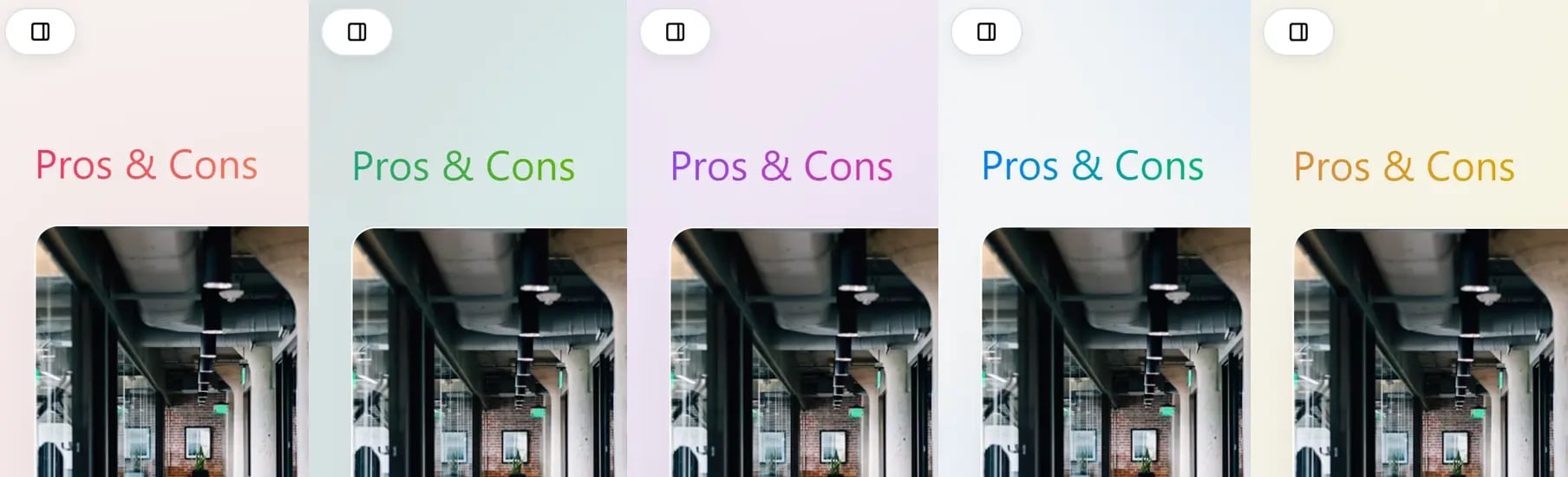 Themes can help you distinguish between Boards, organize different types of work, or simply create a workspace that feels more comfortable to use. Select one of the available color swatches to apply it to the current Board.
You can change the theme at any time without affecting your notes, files, links, or other Board content.
## Maximum Board Width
Set the maximum width of your Board to control how much horizontal space it occupies. This is especially useful when working across different screen sizes or when you prefer a more compact layout.
| Option | Maximum Width | Best For |
| :------------- | :---------------------------- | :---------------------------------------------------- |
| **Narrow** | 720px | Compact Boards and focused reading |
| **Medium** | 1024px | Everyday research and note-taking |
| **Wide** | 1440px | Larger Boards with multiple columns |
| **Extra Wide** | 1920px | Wide monitors and information-dense Boards |
| **Auto Fit** | Adapts to the available space | Automatically fitting the Board to the current window |
Choose the width that best suits your screen and the amount of information you want to see at once. **Auto Fit** is useful when you frequently resize the window or switch between different displays.
View settings change how the Board is displayed. They do not remove or modify your Board content.
Themes can help you distinguish between Boards, organize different types of work, or simply create a workspace that feels more comfortable to use. Select one of the available color swatches to apply it to the current Board.
You can change the theme at any time without affecting your notes, files, links, or other Board content.
## Maximum Board Width
Set the maximum width of your Board to control how much horizontal space it occupies. This is especially useful when working across different screen sizes or when you prefer a more compact layout.
| Option | Maximum Width | Best For |
| :------------- | :---------------------------- | :---------------------------------------------------- |
| **Narrow** | 720px | Compact Boards and focused reading |
| **Medium** | 1024px | Everyday research and note-taking |
| **Wide** | 1440px | Larger Boards with multiple columns |
| **Extra Wide** | 1920px | Wide monitors and information-dense Boards |
| **Auto Fit** | Adapts to the available space | Automatically fitting the Board to the current window |
Choose the width that best suits your screen and the amount of information you want to see at once. **Auto Fit** is useful when you frequently resize the window or switch between different displays.
View settings change how the Board is displayed. They do not remove or modify your Board content.