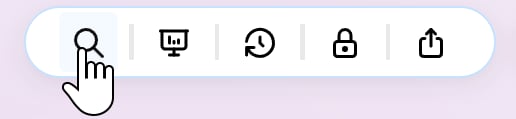

When a board contains only a few cards, you can usually find what you need by looking at its visual layout. As your research grows, however, a board may contain dozens of blocks or more. You may also need to find information across multiple boards. In these cases, use Search. Search is available as a dedicated button in the top menu and opens the Search dialog. Snipaste 2026 08 14 13 19 47

Search Options

Snipaste 2026 08 14 13 20 41
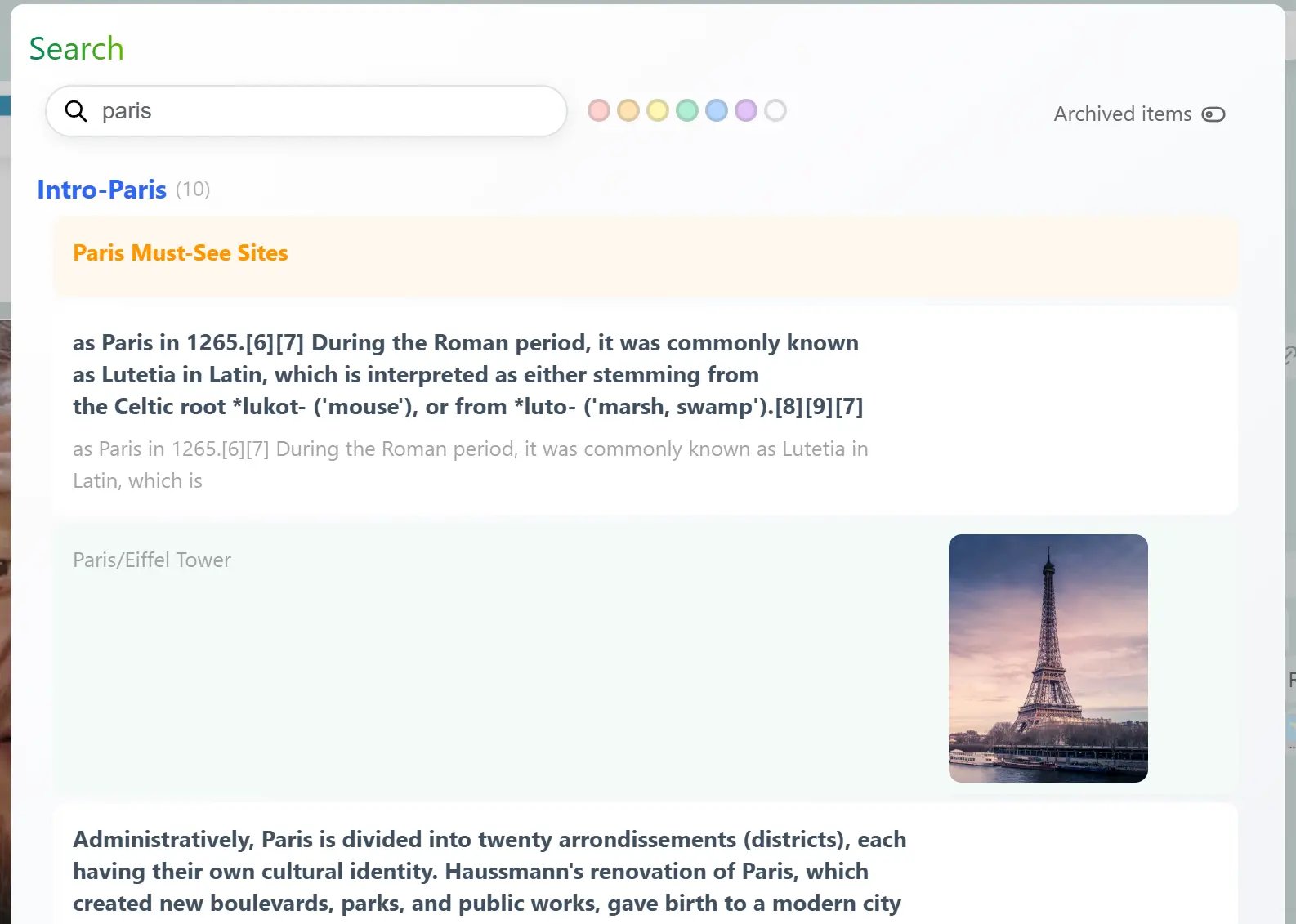
Bentowise uses keyword-based search. Matching content from the current board is shown first, followed by matches from other boards. In addition to keywords, you can filter blocks by color. You can select one or multiple colors to narrow the results to blocks that use those colors. By default, archived boards are excluded from search to improve performance. If you need to search them as well, enable the archived-board scope from the options on the right side of the Search dialog.

Open a Search Result

Clicking a search result takes you directly to the matching block. If the result belongs to another board, Bentowise will switch to that board automatically. If you only want to reference information from another board without changing your current workspace, you can open the result in a new window instead. This keeps your current board open while letting you view the other result separately.
Snipaste 2026 08 14 13 23 56
If the matching result is already on the current board, Bentowise will simply navigate to it and will not open another window.