Update an Existing Board
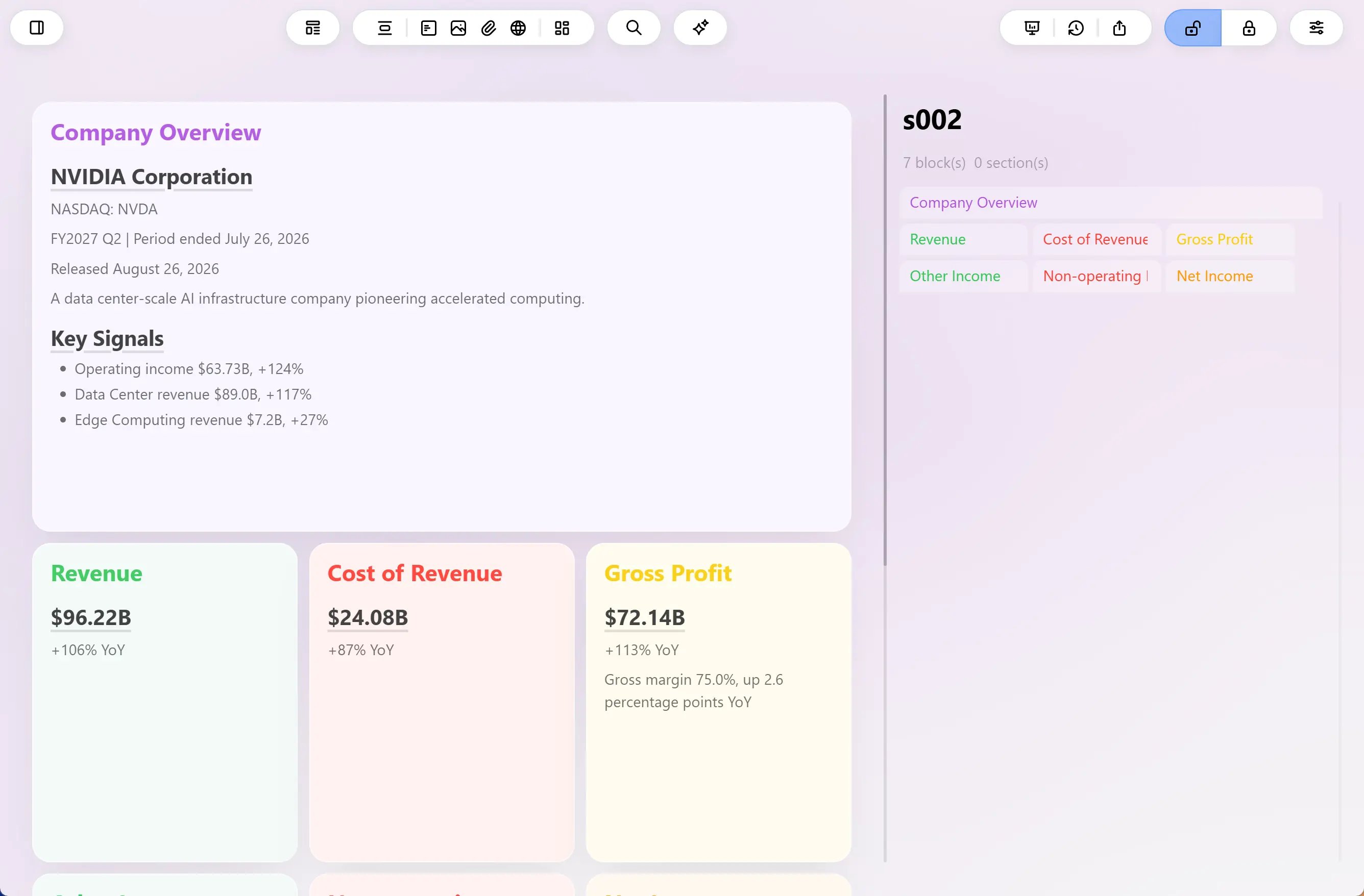
This example shows how to use an AI agent to fill an existing Bentowise Board with researched information while preserving its original structure. We will use a financial research Board that already contains sample data. The goal is to replace the examples with actual company information, update the relevant figures, and keep the Board ready for review.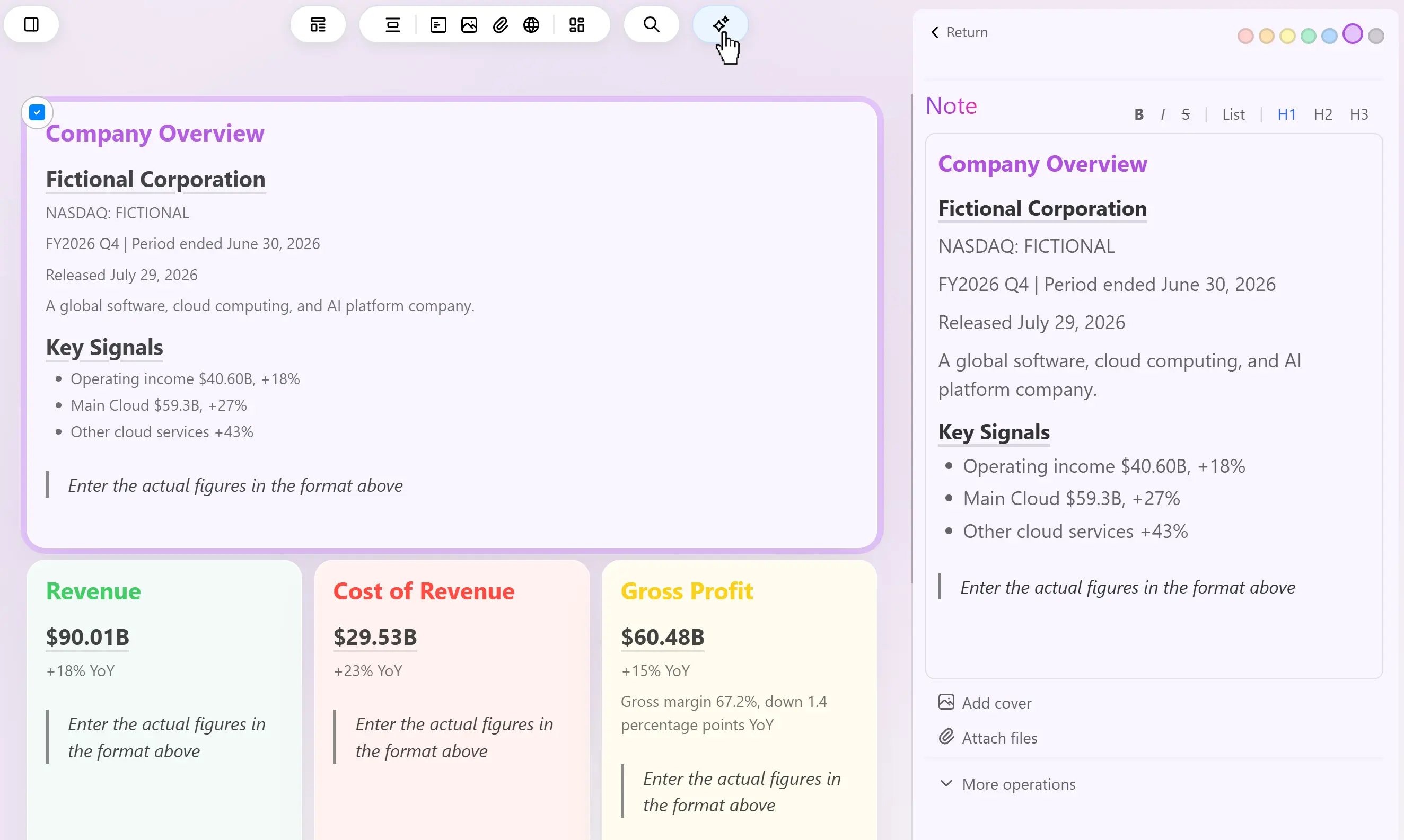
Start with a Board Template
Open a financial research template in Bentowise. The Board contains blocks for company information, revenue, costs, gross profit, and other financial metrics. The sample data helps you understand what belongs in each block and how the information should be presented. For example, a Revenue block might contain a sample figure, a year-over-year growth rate, and a short instruction:Enter the actual figures in the format above.These instructions can remain inside the Board. They give your AI agent useful context about what information to find and how to present it. You can also edit the instructions before starting the session. For example, you might specify that a block should use quarterly figures, include year-over-year comparisons, or explain an important change in the numbers.
Add Your Own Requirements
The Board itself can describe the structure and the information you want to collect. Your AI client is where you can provide additional instructions for the current task. For example, you can ask the agent to research a particular company, use its latest available earnings report, verify figures against official sources, and keep the existing layout unchanged. This gives you two ways to guide the work: instructions inside the Board for individual blocks, and instructions in the AI client for the overall research task.Start the AI Session
Click Start AI Session in Bentowise. If this is your first session, follow the setup dialog to install the Bentowise Skill and open your Vault as the Work Folder or Project in your AI client. Click Next when you are ready. Bentowise will prepare the session, create a Restore Point, and temporarily lock the Board.Ask Your AI Agent to Fill the Board
Switch to your AI client and give it a clear instruction. For example:Let the Agent Complete the Research
The AI agent can inspect the active Board, read the existing sample content and instructions, research the requested information, and update the relevant blocks. When the AI client has finished, return to the Bentowise AI Session window and click Done. Bentowise will unlock and refresh the Board so you can review the updated content. The original layout remains in place, but the sample information has been replaced with researched results.